Update Okta User Org Role
For every user, Statsig surfaces a SCIM field namedstatsigOrgRole. Through this field, you can manage organization user roles.
Currently, Okta can only push role updates to Statsig.
Step 1. Create the Custom Attribute in Okta
Navigate toDirectory > Profile Editor and select the User (default) Okta profile. This represents all of the Okta users’ attributes.
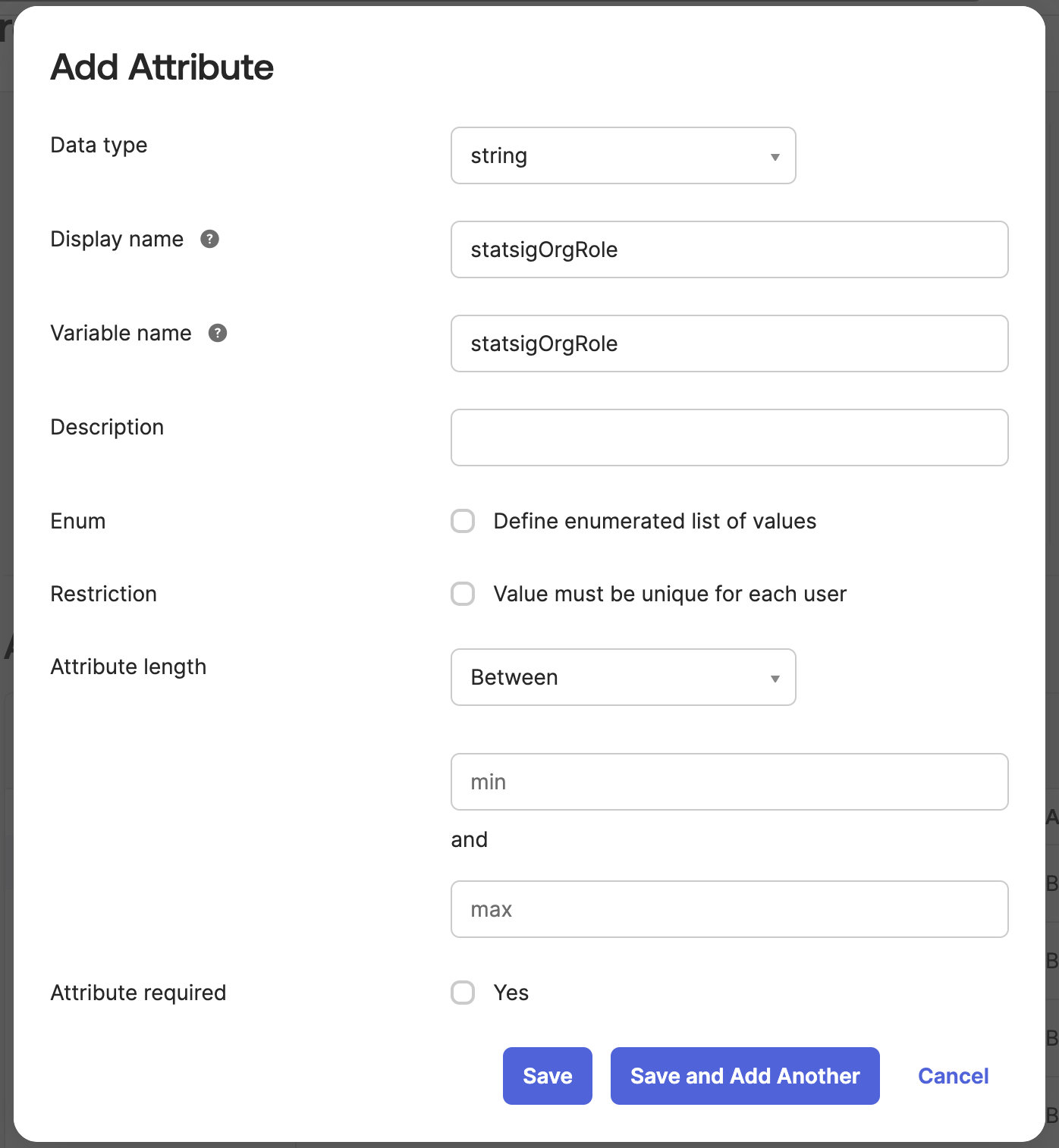
Scroll down and press Add Attribute and fill out the new attribute to have the variable name statsigOrgRole.
Step 2. Create the Custom Attribute in the Statsig SCIM Integration
Now Navigate to theStatsig SCIM Integration's User Profile in the Profile Editor.
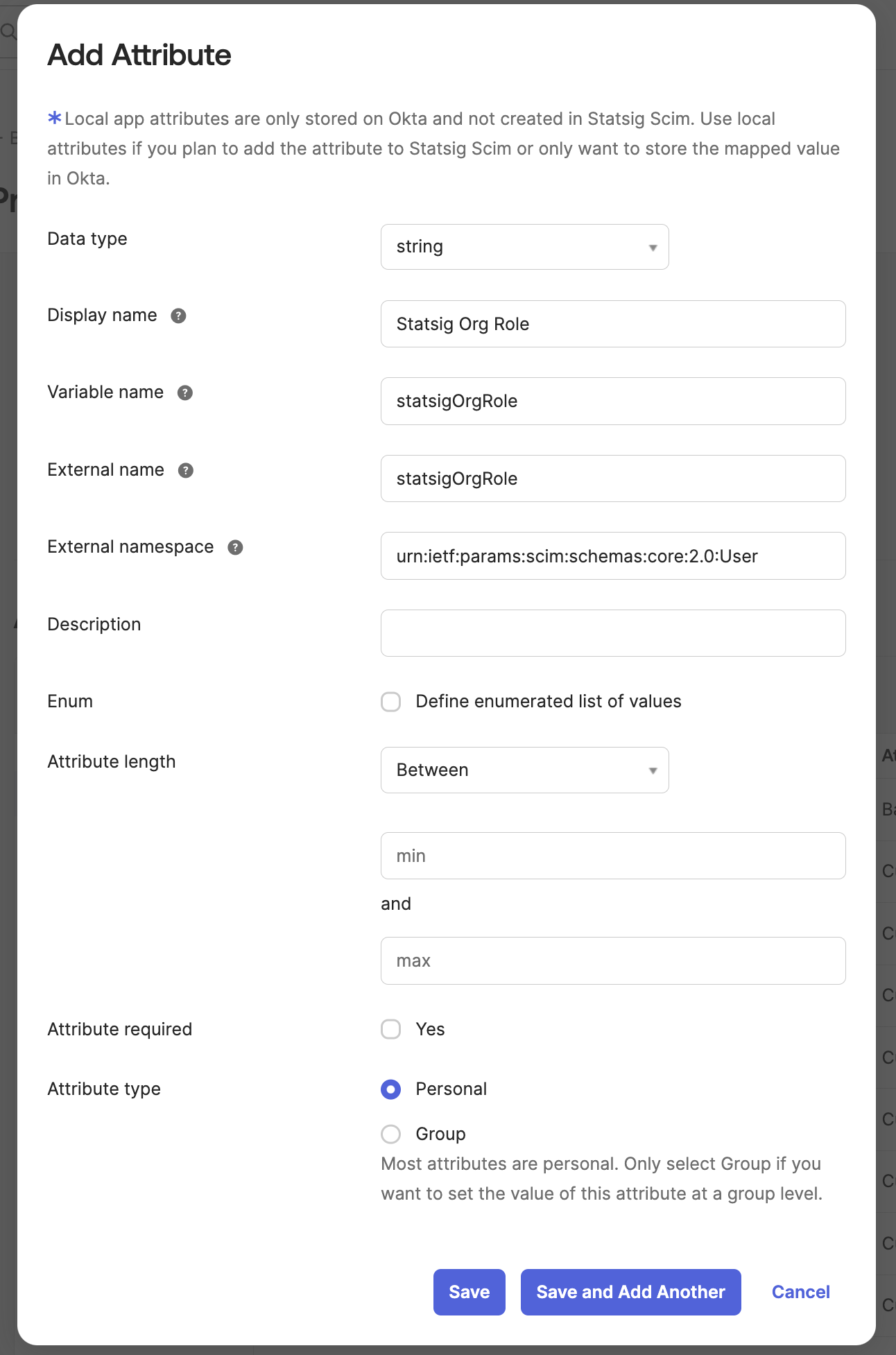
Add an new attribute that matches the following format:
- Variable name:
statsigOrgRole - External namespace:
urn:ietf:params:scim:schemas:core:2.0:User
Step 3. Create a Mapping from Statsig to Okta for the Custom Attribute
On the same Statsig SCIM profile editor, navigate to theMappings button.
Scroll down to the new attribute statsigOrgRole and map user.statsigOrgRole to the Okta attribute statsigOrgRole.
Step 4. Create a mapping from Okta to Statsig for the Custom Attribute
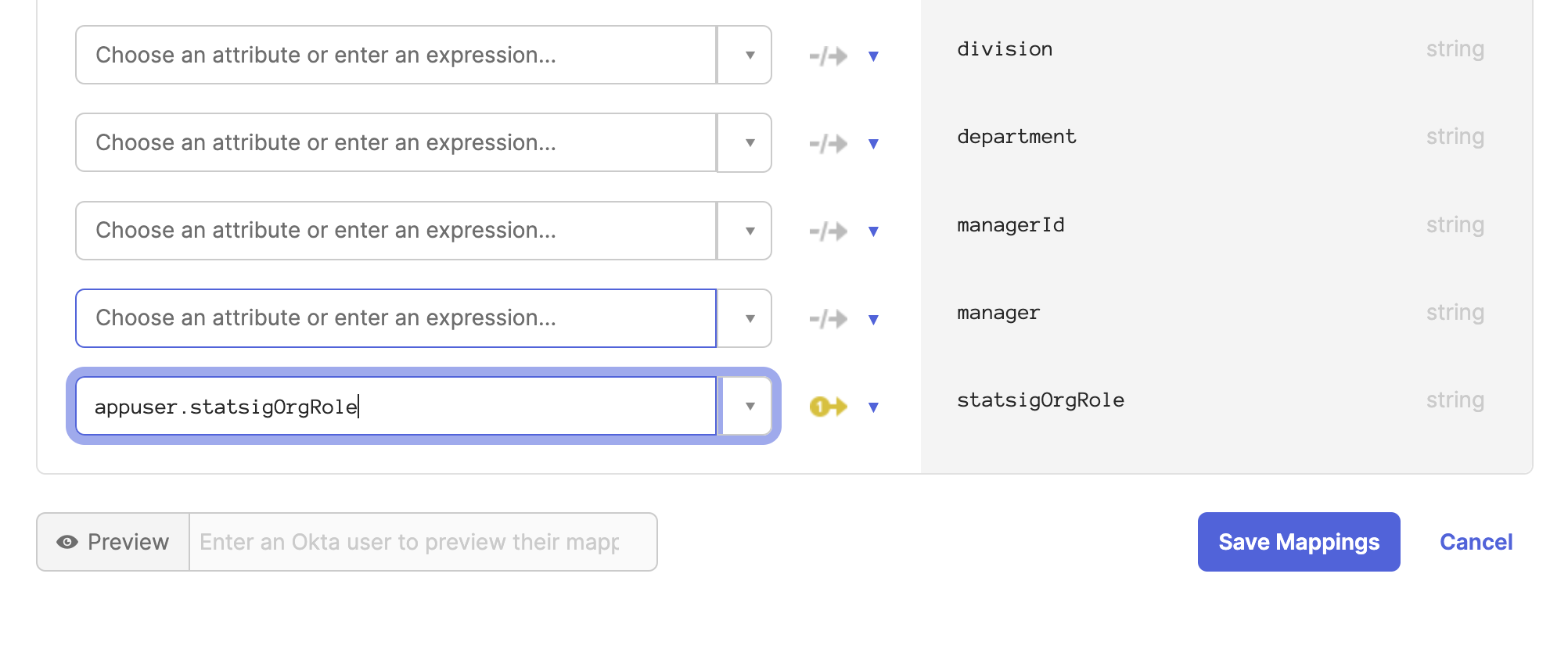
Now navigate to the Okta User to Statsig SCIM user mapping.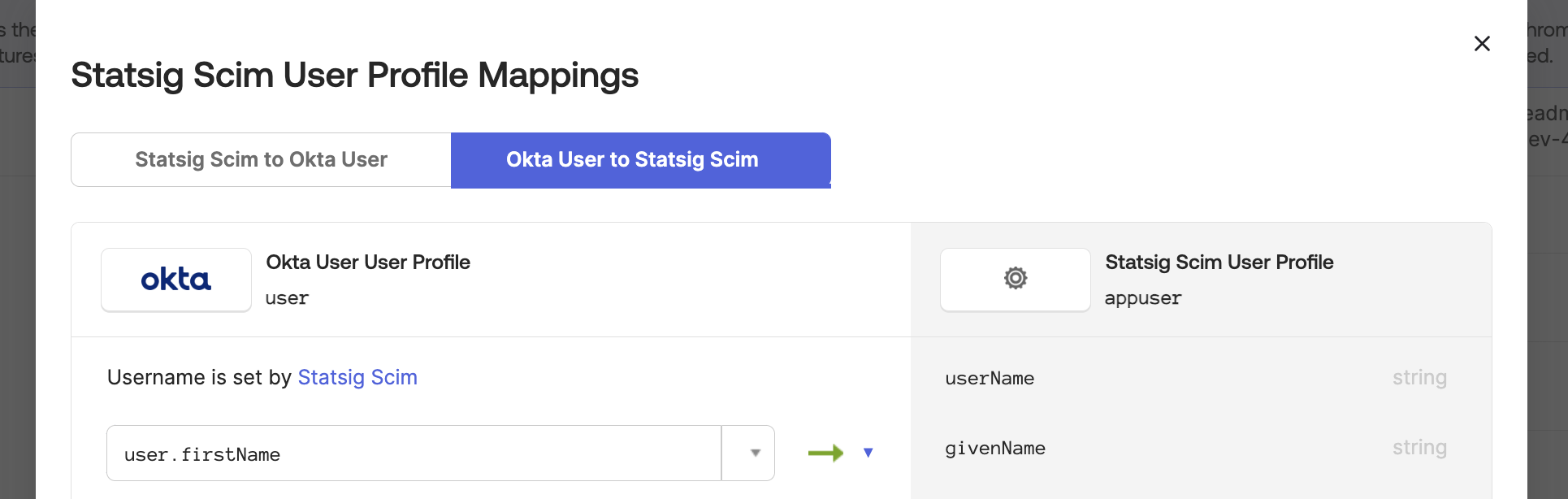
statsigOrgRole attribute and map user.statsigOrgRole to the Okta attribute statsigOrgRole.
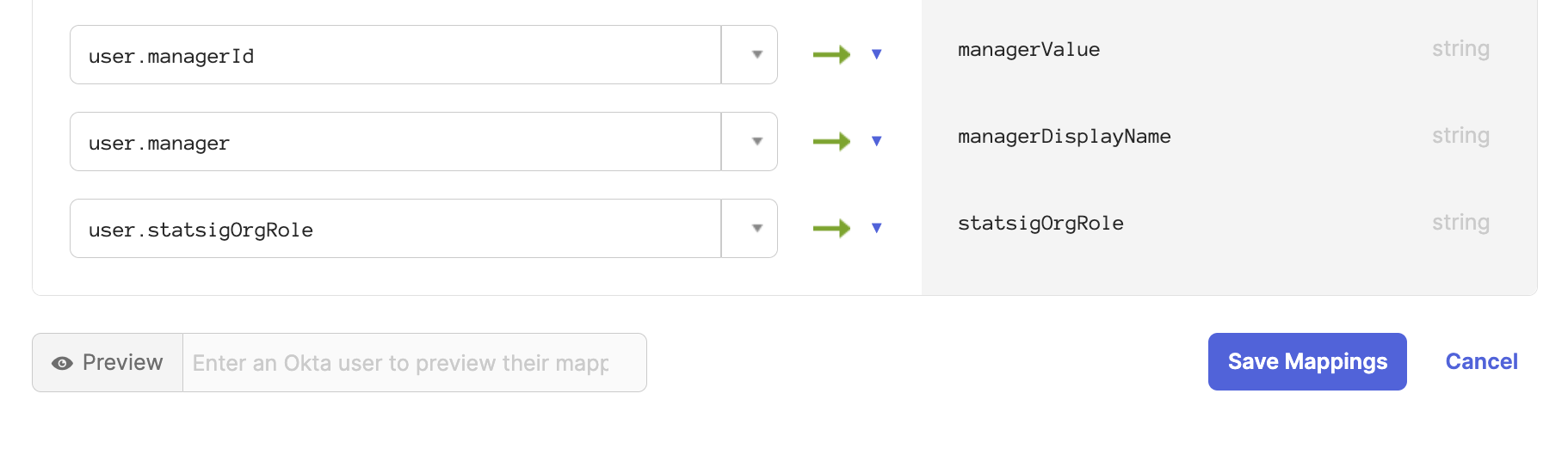
Step 5. Modify Integration Mappings
Navigate to the Statsig SCIM integration provisioning section. Under the “To App” tab, scroll down to thestatsigOrgRole attribute.
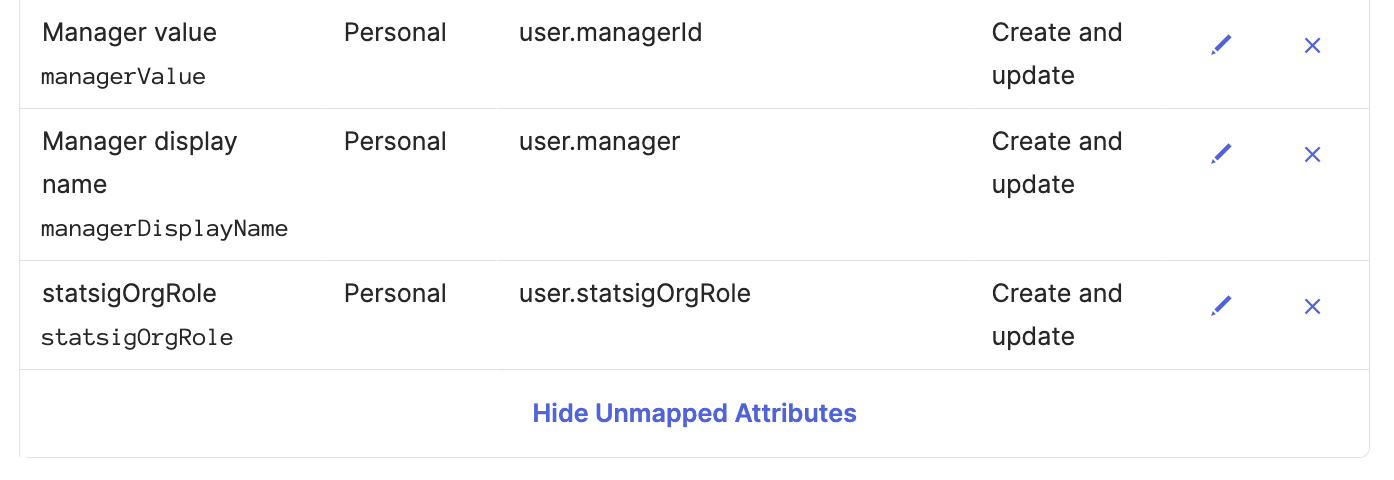
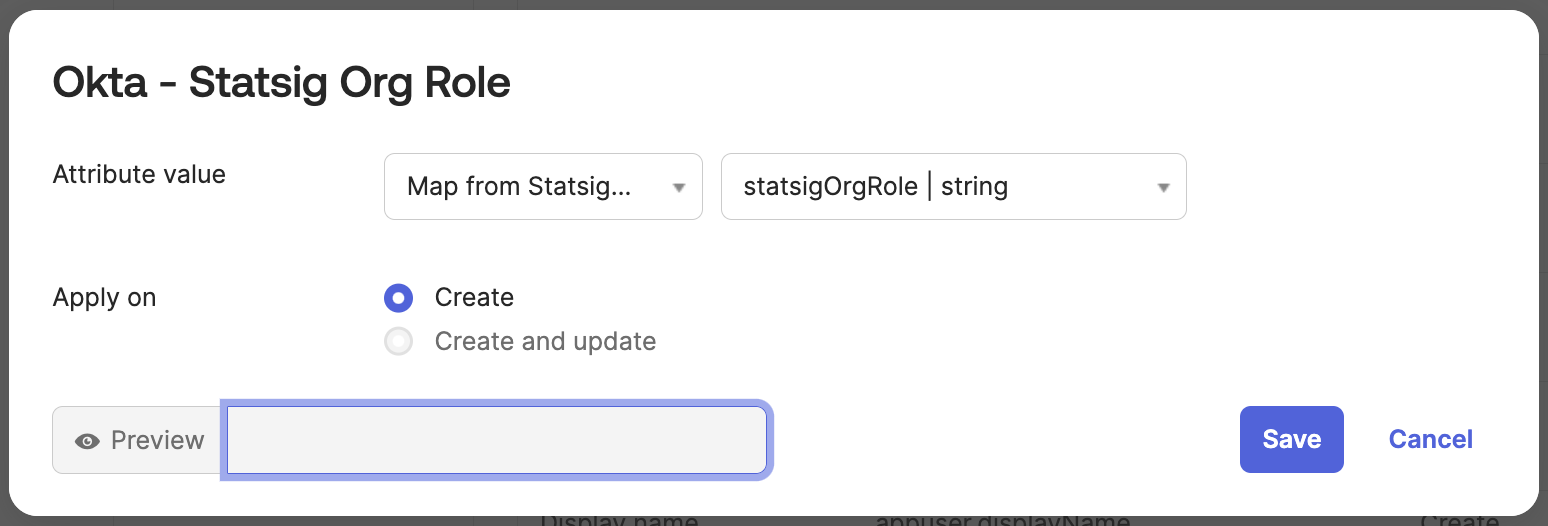
Map from Okta Profile and statsigOrgRole.
Set apply on Create and update.
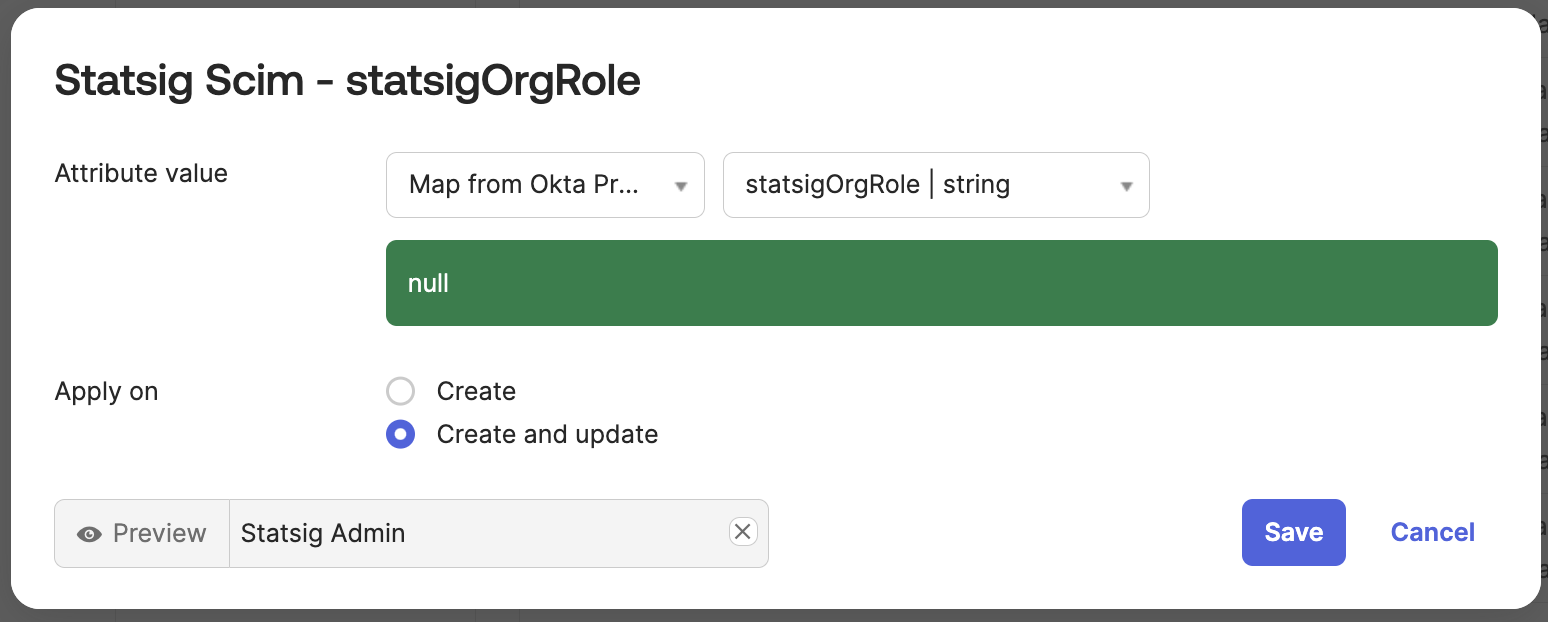
statsigOrgRole attribute.
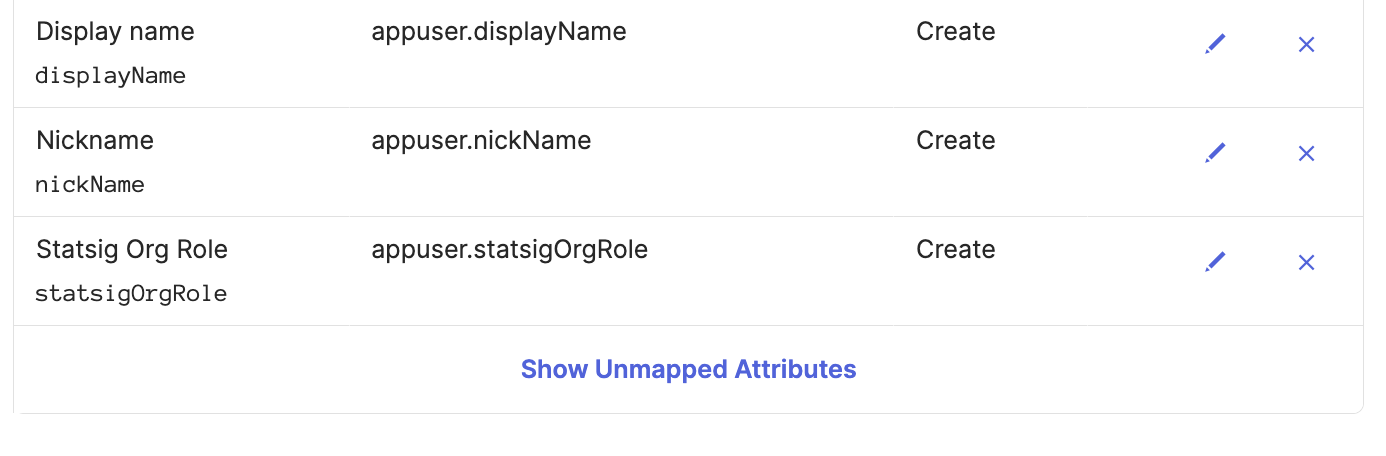
Map from Statsig Profile and statsigOrgRole.
Set apply on Create.